Product Description
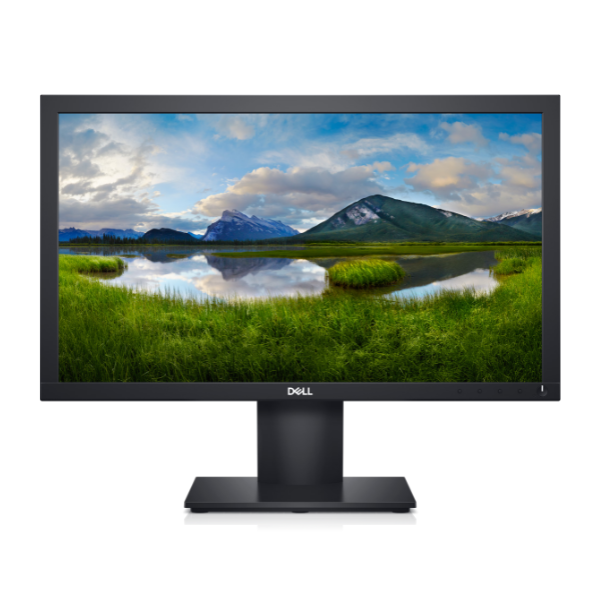
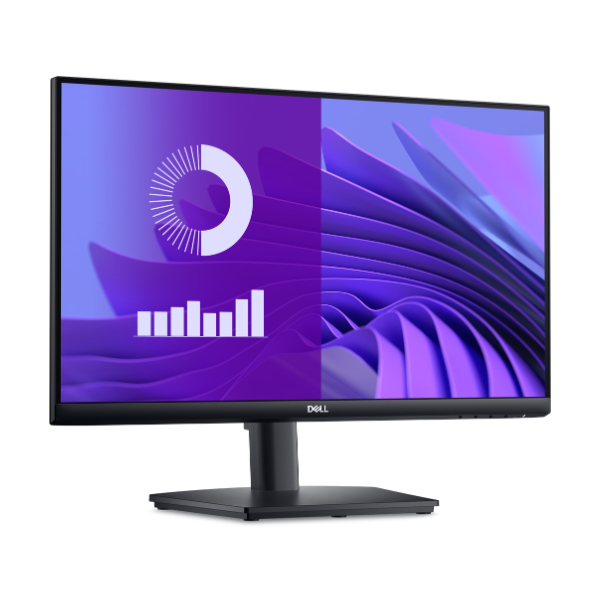
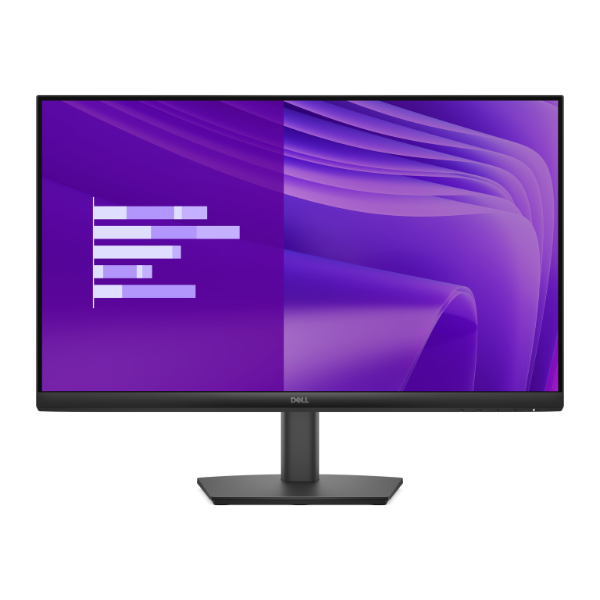
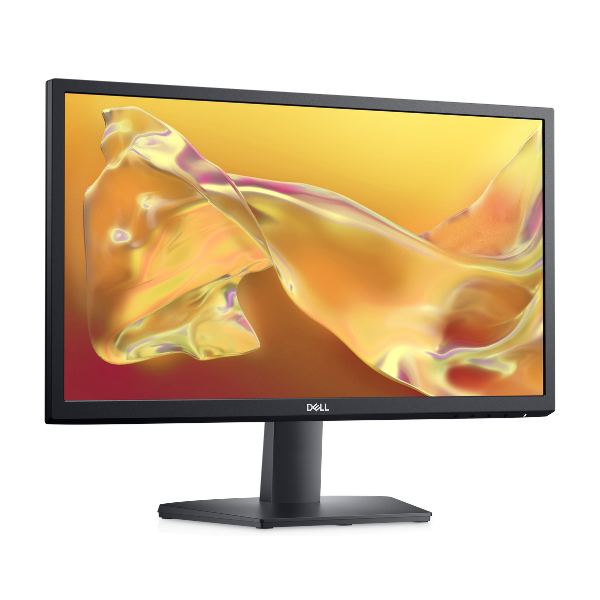
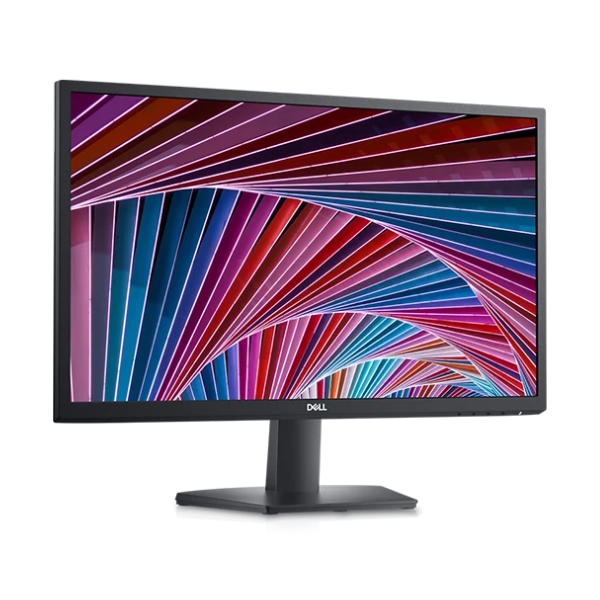
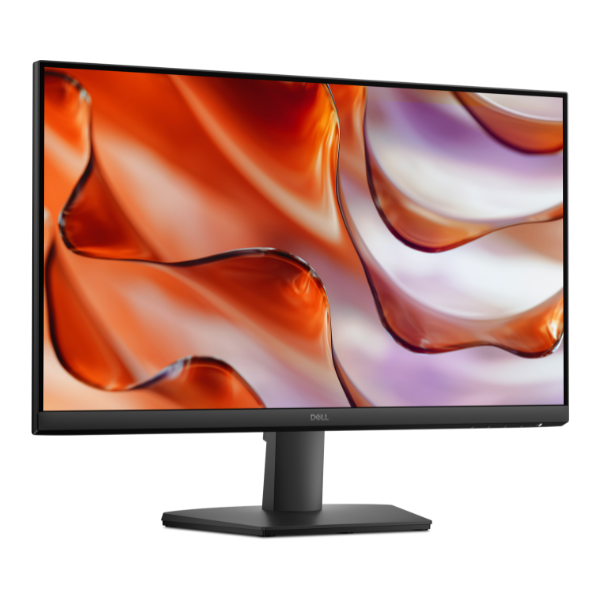
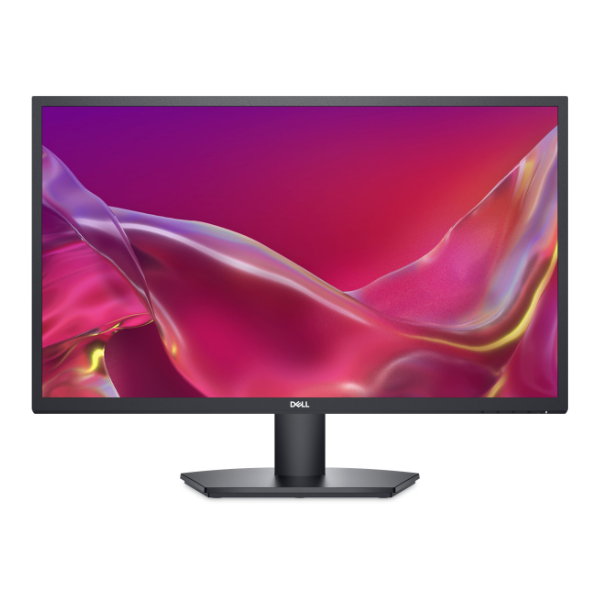
Upgrade your viewing experience with the BRAND NEW Dell SE2725H 27-inch Monitor. Whether you're setting up your home office in Kampala, studying for exams, or relaxing with a movie, this monitor delivers crisp, clear images on its large Full HD screen. Its modern, elegant design with thin bezels means less distraction and more screen, making it a stylish addition to any desk.
This monitor is built for performance and comfort. The Vertical Alignment (VA) panel technology provides an impressive 3000:1 contrast ratio, delivering deeper blacks and brighter whites for a more immersive picture. The 75Hz refresh rate ensures smoother motion compared to standard 60Hz monitors, which you'll notice when scrolling through websites or during light gaming. Plus, with AMD FreeSync™ technology, you can enjoy tear-free and stutter-free visuals during fast-paced action scenes. It also features Dell's ComfortView, which reduces harmful blue light emissions to help minimize eye strain during long sessions.
Connecting your devices is simple with both HDMI and VGA ports available, offering compatibility with both modern and older computers. This brand new, sealed unit is the perfect all-around display for everyday tasks. From creating spreadsheets and documents to streaming your favorite series, the Dell SE2725H provides the quality and reliability you need to be productive and entertained.
📖 HOW TO USE
1. Carefully unbox the monitor and all components from the packaging.
2. Attach the monitor stand to the back of the screen and secure the base.
3. Connect the power cord to the monitor and plug it into a power outlet.
4. Connect the included HDMI or a VGA cable from your computer to the monitor.
5. Press the power button on the monitor to turn it on and select the correct input source if needed.
💡 TIPS & CARE
• For the best experience, set your computer's display resolution to 1920x1080.
• Enable the 75Hz refresh rate in your computer's display settings for smoother visuals.
• Use a soft, dry microfiber cloth to clean the screen. Avoid using any liquids directly on the display.
• Activate ComfortView mode through the on-screen display (OSD) menu for late-night work or reading sessions to reduce eye strain.