Product Description
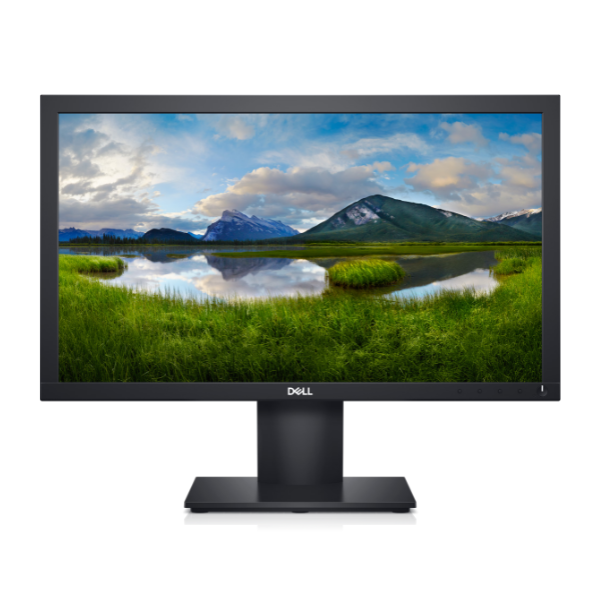
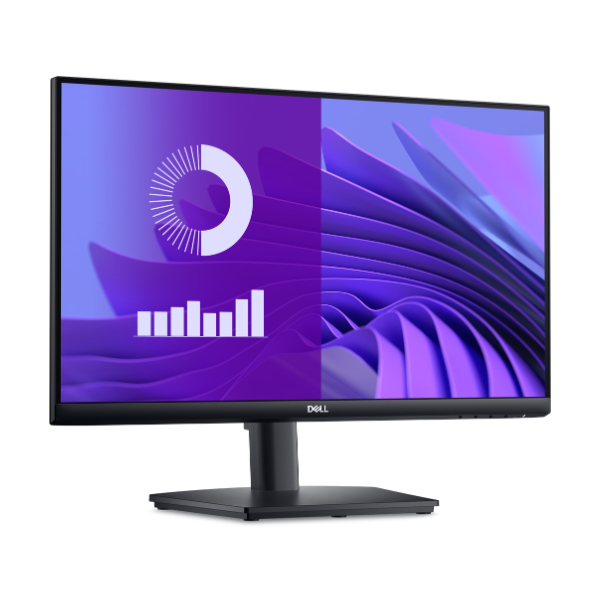
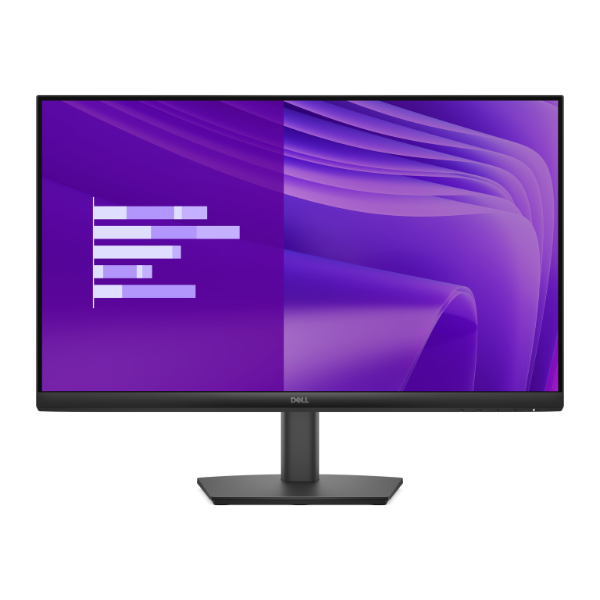
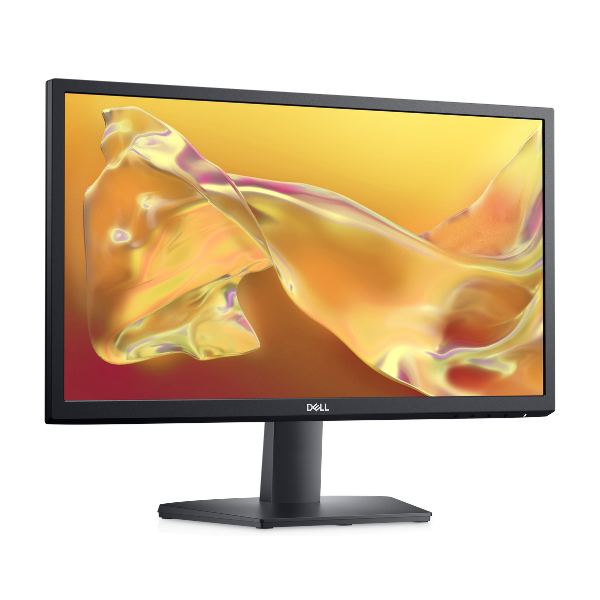
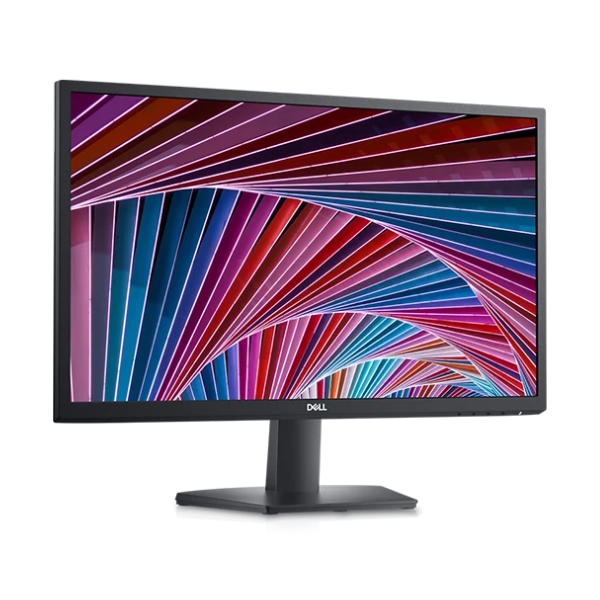
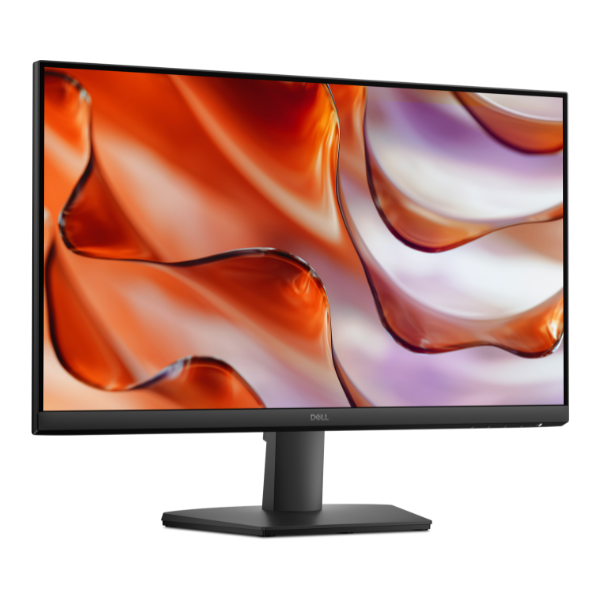
Upgrade your workspace or gaming setup with the brand new Dell SE2425HM 24-inch IPS Monitor. This display delivers exceptional clarity and vibrant colors thanks to its Full HD (1920x1080) resolution and In-Plane Switching (IPS) panel technology. Whether you're working on spreadsheets, editing photos, or watching movies, you'll enjoy consistent, accurate colors from any angle. Its slim bezel design makes it perfect for a modern desk setup and ideal for multi-monitor configurations.
Experience a new level of smoothness in everything you do. The 100Hz refresh rate provides noticeably smoother motion compared to standard 60Hz monitors, making scrolling through web pages and gaming a more fluid experience. Combined with AMD FreeSync technology, this monitor synchronizes the refresh rate with your compatible graphics card to eliminate screen tearing and stuttering, giving you a competitive edge in fast-paced games. It also features Dell's ComfortView Plus, a built-in low blue light screen that optimizes eye comfort for long sessions without sacrificing color accuracy.
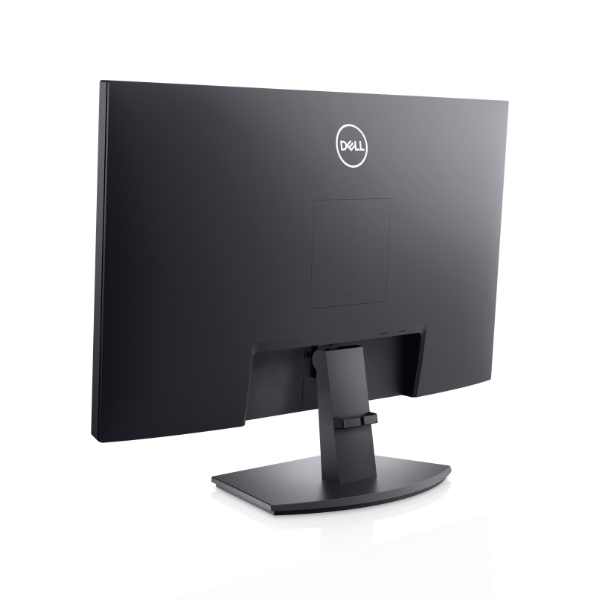
This monitor is built for convenience and reliability. It comes factory-sealed and is ready to connect to your PC or laptop with its included HDMI and DisplayPort inputs. The sturdy stand provides a stable base, while the monitor itself is built with Dell's renowned quality. For anyone in Uganda looking for a high-quality, versatile, and brand new monitor that excels at both work and play, the Dell SE2425HM is an excellent choice.
📖 HOW TO USE
1. Carefully unbox the monitor and all its components.
2. Attach the stand base to the monitor neck and then securely attach it to the back of the monitor.
3. Connect the power cord to the monitor and plug it into a power outlet.
4. Connect the HDMI or DisplayPort cable from your computer to the corresponding port on the monitor.
5. Power on your computer and the monitor. It should be automatically detected.
6. Use the buttons on the monitor to access the On-Screen Display (OSD) menu to adjust brightness, contrast, and other settings to your preference.
💡 TIPS & CARE
• For gaming, ensure you enable FreeSync in your graphics card's control panel.
• Set your computer's display settings to run at the 100Hz refresh rate to get the smoothest performance.
• Calibrate the display colors using your operating system's built-in tool for the most accurate picture.
• Position the monitor at eye level to reduce neck strain during long hours of use.