Product Description
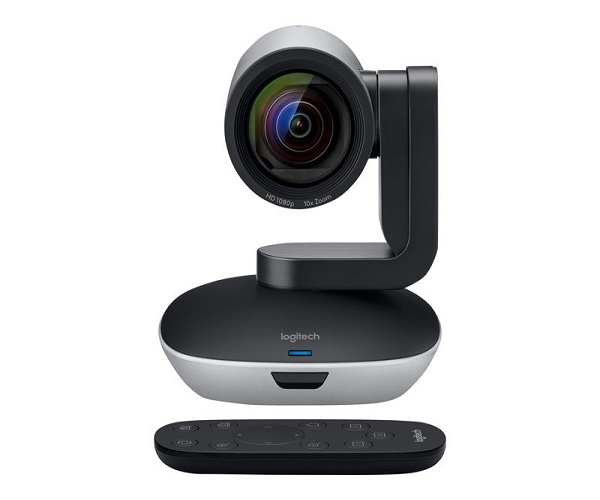
Upgrade your business meetings, online classes, or large events with the BRAND NEW Logitech PTZ Pro 2 Conference Webcam. This isn't just a simple webcam; it's a professional-grade video tool designed to bring everyone into the picture with stunning clarity. Whether you're in a large boardroom in Kampala or conducting training across the country, the PTZ Pro 2 delivers premium optics and lifelike video to create the experience of sitting in the same room.
The PTZ Pro 2 features a high-quality camera lens that shoots in crisp Full HD 1080p. The real magic is in its smooth, remote-controlled movement. You can pan across the room, tilt up and down, and zoom in up to 10x without losing image quality. This is perfect for focusing on different speakers, a whiteboard, or product demonstrations. Setting it up is incredibly simple – just plug it into your computer's USB port, and it's ready to work with all popular video conferencing apps like Zoom, Microsoft Teams, Google Meet, and Skype.
Built for professional environments, this brand new, sealed unit is a smart investment for any Ugandan organization looking to improve its remote communication. It comes with a handy remote control that allows you to save up to three preset camera positions, so you can switch views with the single press of a button. Make every meeting more engaging and professional with the clarity and flexibility of the Logitech PTZ Pro 2.
📖 HOW TO USE
1. Unbox the PTZ Pro 2 camera and all included accessories.
2. Mount the camera on a table, tripod, or wall using the provided mounting hardware.
3. Connect the camera to the power adapter and plug it into a power outlet.
4. Connect the camera to your computer using the provided USB cable.
5. Open your video conferencing application (e.g., Zoom, Teams) and select 'Logitech PTZ Pro 2' as your camera.
💡 TIPS & CARE
• Use the included remote to smoothly pan, tilt, and zoom during your meetings.
• Save your most common camera views (e.g., full room, presenter, whiteboard) to the three preset buttons for quick access.
• For the best video quality, ensure your meeting room is well-lit.
• Position the camera at eye level for the most natural and engaging video feed.