Product Description
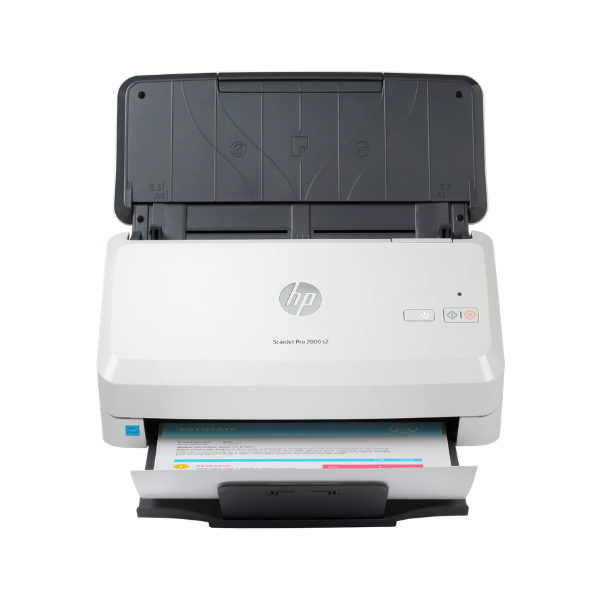
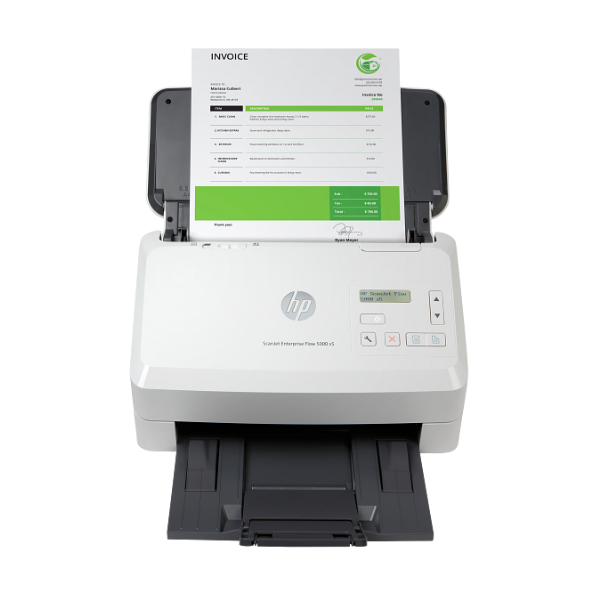
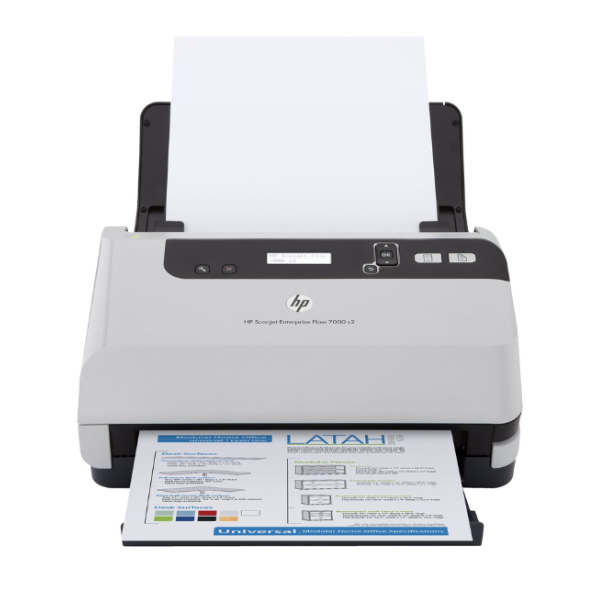
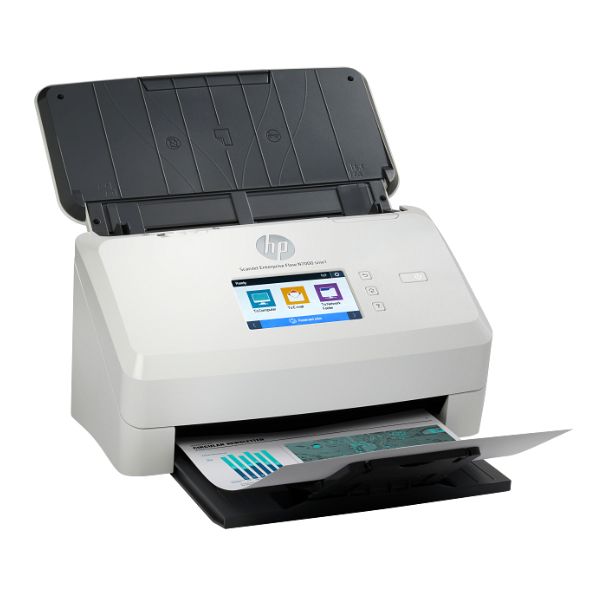
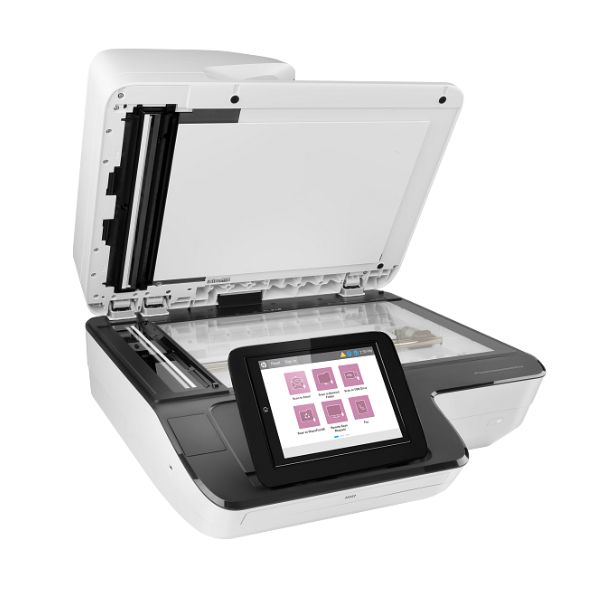
Transform your document management with the BRAND NEW HP Digital Sender Flow 8500fn2, a powerful document capture workstation designed for demanding office environments in Uganda. This machine is built to handle high volumes of paperwork, turning cluttered desks into efficient digital archives. With its incredible scanning speed of up to 100 pages per minute (ppm) and 200 images per minute (ipm) in duplex mode, you can process large stacks of documents in a fraction of the time.
This scanner is packed with features to streamline your workflow. The large 150-sheet Automatic Document Feeder (ADF) and HP EveryPage technology ensure that mixed stacks of paper are fed smoothly without misfeeds or jams. The intuitive 8-inch touchscreen makes it easy to preview, edit, and send your scans directly to email, network folders, SharePoint, or a USB drive without needing a computer. Its robust build quality guarantees reliability and long-term performance for any busy office.
Perfect for law firms, hospitals, government offices, and businesses with heavy paper trails, the 8500fn2 simplifies complex tasks. Create searchable PDFs with the built-in OCR, protect sensitive information with advanced security features, and manage the device remotely over your network. By investing in this brand new HP scanner, you are not just buying a piece of hardware; you are upgrading your entire office workflow for better efficiency, security, and accessibility of your important documents.
📖 HOW TO USE
1. Unbox the scanner and place it on a stable, flat surface near a power outlet and network port.
2. Connect the power cord to the scanner and a wall outlet, then connect the Ethernet cable to your network router or switch.
3. Power on the device and follow the on-screen instructions on the touchscreen to complete the initial setup and network configuration.
4. For multi-page documents, load them into the Automatic Document Feeder (ADF). For single pages, books, or fragile items, use the flatbed.
5. Use the touchscreen to select your scan destination (e.g., email, network folder), adjust settings like resolution and file type, and press 'Start Scan'.
💡 TIPS & CARE
• For best results, fan the stack of paper before loading it into the ADF to prevent pages from sticking together.
• Regularly clean the scanner glass, rollers, and sensors with a soft, lint-free cloth to ensure high-quality scans.
• Create custom scan profiles for frequently repeated tasks to save time and ensure consistency.
• Utilize the built-in Optical Character Recognition (OCR) feature to convert your scans into editable and searchable text documents.