Product Description
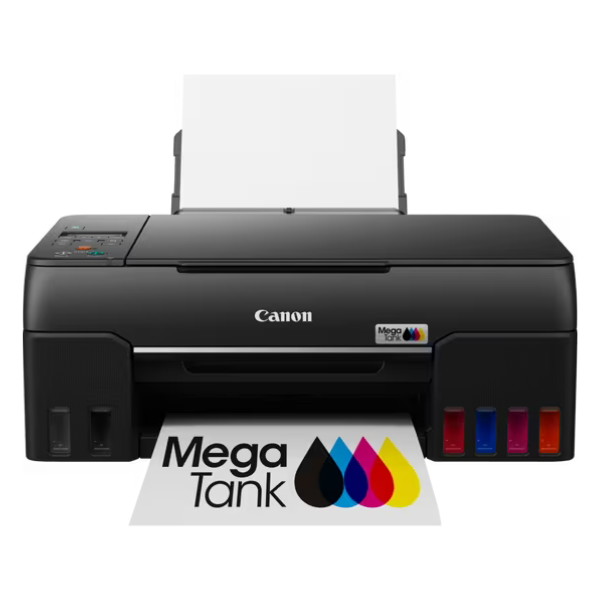
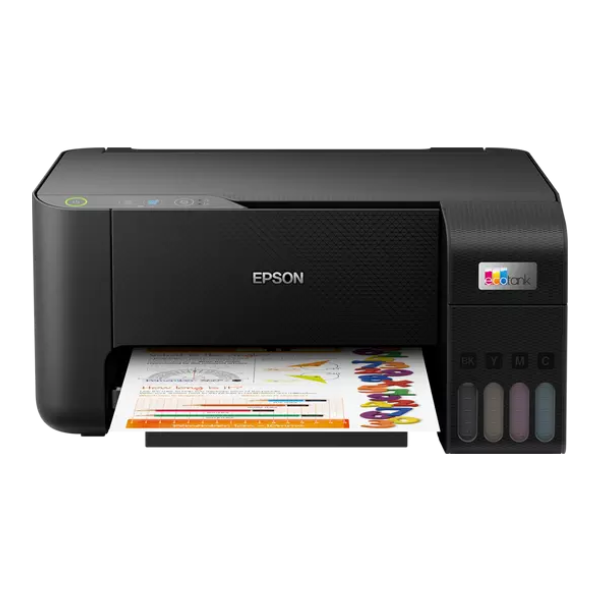
Say goodbye to expensive cartridges and hello to incredible savings with the brand new Epson EcoTank L3210 All-in-One Printer. Designed for the modern Ugandan home or small office, this printer offers powerful Print, Scan, and Copy functions in a single, compact device. The revolutionary integrated ink tank system eliminates the need for constant cartridge replacements, saving you money and reducing waste.
Built with Epson's Heat-Free Technology, the L3210 delivers high-quality prints at a remarkable resolution of 5760 dpi, ensuring your documents are sharp and your photos are vibrant. This technology also means lower power consumption and faster printing from startup. Refilling the ink is simple and mess-free thanks to the specially designed bottles with unique key nozzles that only fit the corresponding tank. With an astonishing yield of up to 4,500 pages for black and 7,500 pages for colour from the included ink bottles, you can print for months, or even years, without worry.
Whether you're a student printing assignments, a business owner managing documents, or a family preserving memories, the Epson L3210 is your perfect partner. Its space-saving design fits comfortably in any workspace, and its reliability ensures you get the job done every time. Get this brand new, sealed printer today and enjoy hassle-free, high-volume printing at an unbeatable cost per page.
📖 HOW TO USE
1. Carefully unbox the printer and remove all protective packaging.
2. Fill the ink tanks using the corresponding genuine Epson ink bottles. The key-nozzle design prevents spills.
3. Plug in the power cord and turn on the printer.
4. Install the printer software on your computer using the included CD or by downloading from the Epson website.
5. Connect the printer to your computer with the USB cable and follow the on-screen setup instructions.
💡 TIPS & CARE
• Always use genuine Epson ink bottles to ensure the best print quality and longevity of your printer.
• Print a page at least once a week to prevent the print head nozzles from drying out.
• For the best photo prints, use high-quality Epson photo paper.
• Keep your printer drivers and software updated for optimal performance and new features.