Product Description
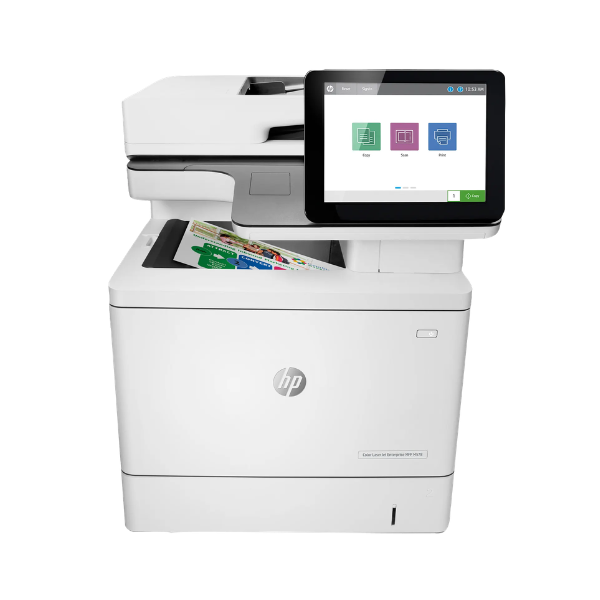
Supercharge your workplace with the brand new HP Color LaserJet Enterprise MFP M578dn. This powerful multifunction printer is engineered for demanding environments in Uganda, offering exceptional speed, quality, and efficiency to keep your business moving forward. It's the perfect all-in-one solution for teams that need professional-quality documents quickly and reliably.
With blazing-fast print and copy speeds of up to 40 pages per minute for both black and color, you'll spend less time waiting and more time working. The automatic two-sided printing feature helps you cut paper consumption by up to 50%, saving money and resources. The large 100-sheet automatic document feeder (ADF) makes scanning multi-page documents a breeze, while the intuitive 8-inch color touchscreen simplifies every task, from copying a single page to setting up complex scan workflows.
Built for the modern office, the M578dn connects seamlessly to your office network via Gigabit Ethernet, allowing your entire team to share its powerful features. Advanced security features protect your sensitive data, giving you peace of mind. Whether you're printing vibrant marketing materials, scanning important contracts, or copying reports, this brand new, sealed HP printer delivers consistent, high-quality results every time.
📖 HOW TO USE
1. Carefully unbox the printer and remove all protective tapes and packaging materials.
2. Open the front cover and install the included HP Genuine toner cartridges into their corresponding color slots.
3. Load A4 paper into the main paper tray and adjust the paper guides.
4. Connect the power cord to an electrical outlet and the network cable to your router or network switch.
5. Power on the printer and follow the on-screen instructions on the touchscreen to complete the initial setup and configuration.
💡 TIPS & CARE
• For the best print quality and printer longevity, always use genuine HP toner cartridges.
• Utilize the automatic duplex printing feature to save on paper costs for internal documents.
• Set up Scan-to-Email and Scan-to-Network-Folder shortcuts for improved office workflow.
• Regularly check for and install firmware updates from the HP support website to ensure optimal performance and security.