Product Description
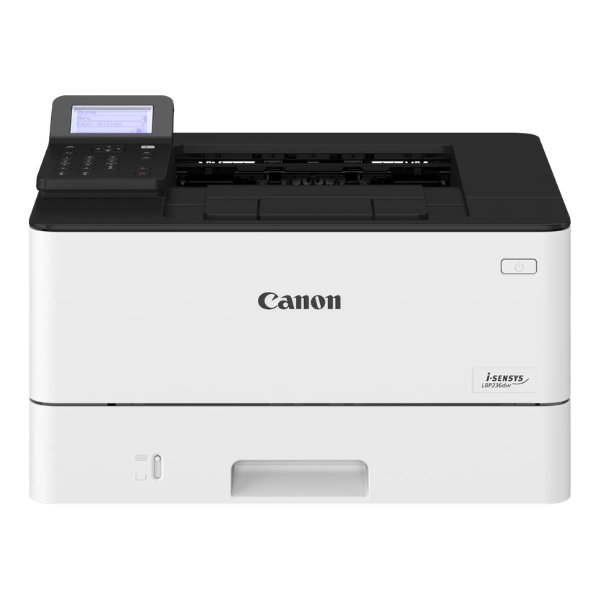
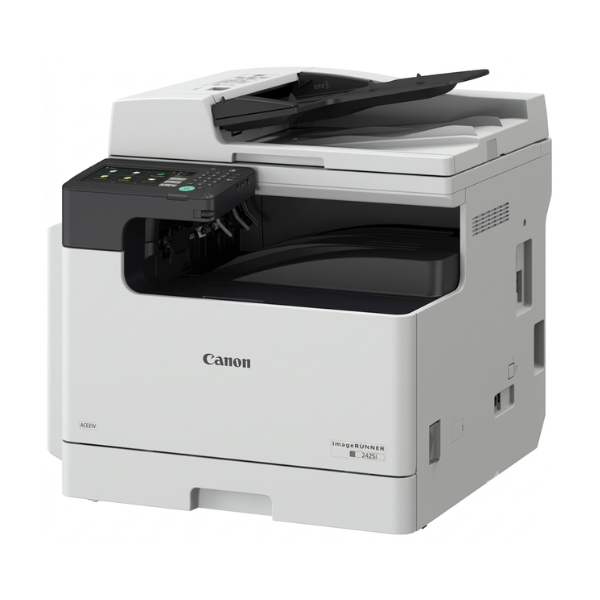
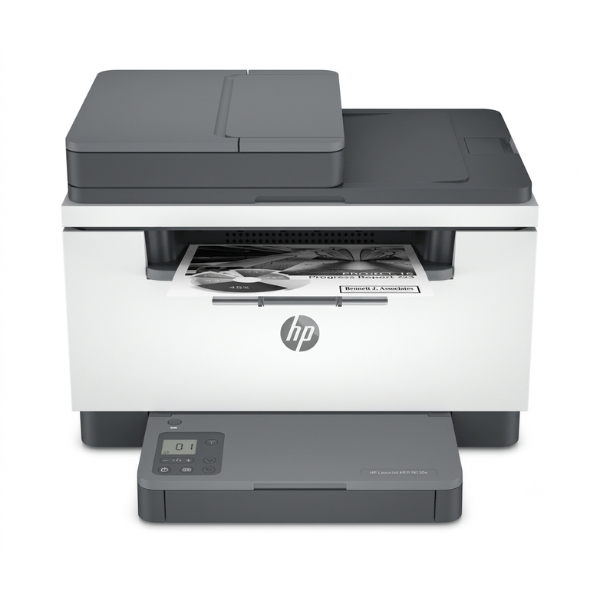
Handle all your office tasks with one powerful, brand new device. The HP 236SDN Multifunction Printer is designed to bring efficiency and professional quality to your small business or home office in Uganda. This compact machine combines a fast printer, a sharp copier, and a high-resolution scanner, saving you space, time, and money. It's the perfect solution for producing crisp, clear documents every time.
Experience incredible productivity with print speeds of up to 30 pages per minute. The Automatic Document Feeder (ADF) makes copying or scanning multi-page documents effortless – just load your stack of papers and let the printer do the work. Built with HP's renowned reliability, this printer is a workhorse that you can depend on for daily tasks, from printing invoices and reports to scanning important documents for your records.
Setting up the HP 236SDN is simple. Connect it directly to a computer via USB or, even better, connect it to your office network using the built-in Ethernet port. This allows your entire team to share the printer easily, improving workflow and collaboration. Its energy-saving features also help keep your electricity bills low, making it a smart and economical choice for any growing business.
📖 HOW TO USE
1. Unbox the printer and carefully remove all blue packing tape and protective materials.
2. Install the included toner cartridge by opening the front access panel.
3. Connect the power cord to the printer and a wall outlet. Connect the Ethernet cable to your router or the USB cable to your computer.
4. Load A4 paper into the main input tray and adjust the paper guides.
5. Power on the printer and follow the on-screen instructions or use the HP Smart software to complete the setup on your computer.
💡 TIPS & CARE
• For the best quality and to protect your printer, always use genuine HP toner cartridges.
• Connect the printer to your network via the Ethernet port to enable easy printing for everyone in the office.
• Use the Automatic Document Feeder (ADF) to quickly scan or copy documents with multiple pages.
• Regularly check for driver updates on the HP support website to ensure optimal performance.