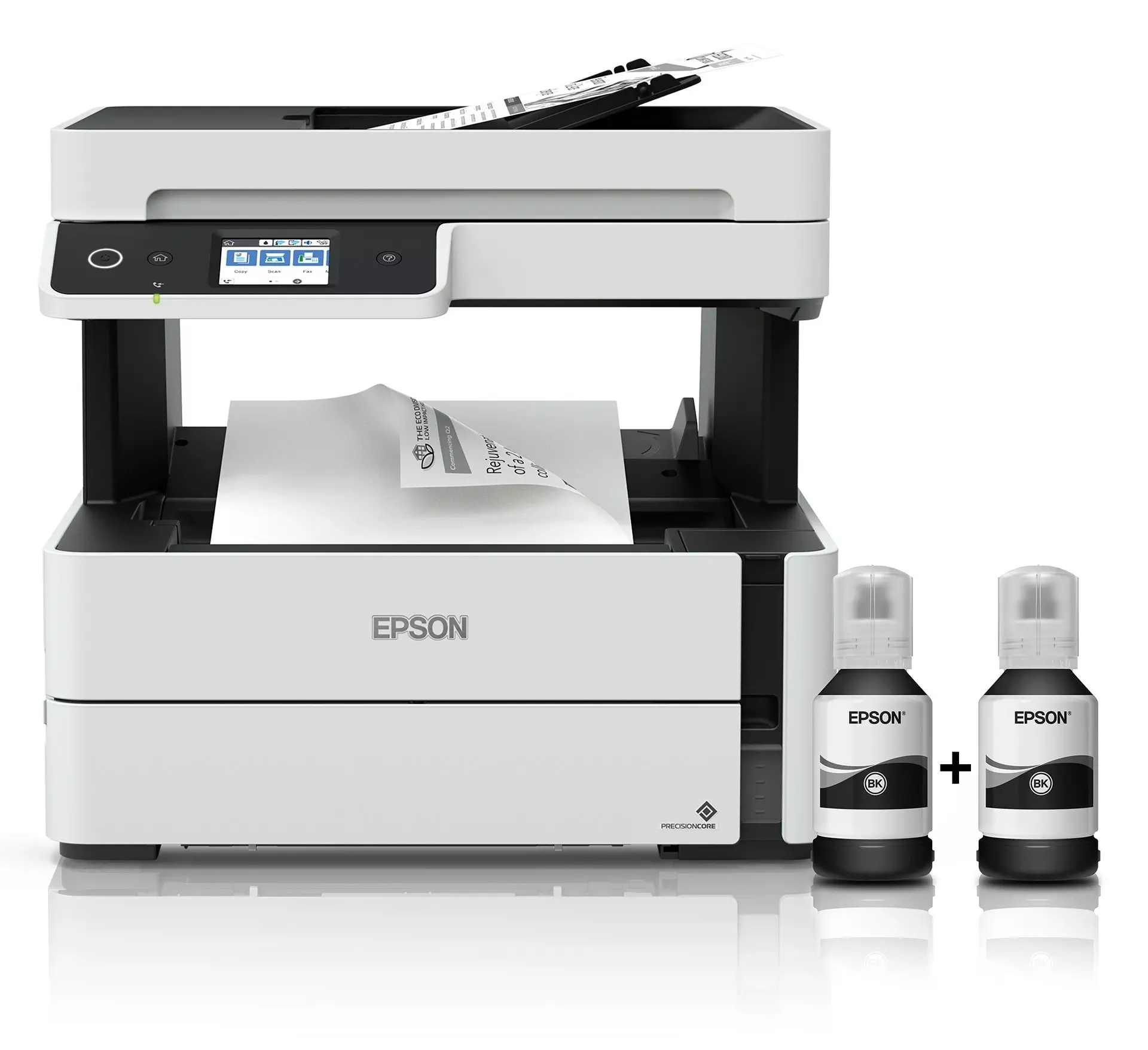
Product Description
Boost your office productivity and slash your printing costs with the brand new Epson EcoTank M3170. This powerful monochrome all-in-one printer is designed for businesses in Uganda that demand efficiency and reliability. Forget expensive cartridges! The integrated high-capacity ink tank system delivers an incredibly low cost-per-page, and the included bottle of ink prints thousands of pages right out of the box.
Powered by Epson's PrecisionCore Heat-Free Technology, the M3170 produces sharp, laser-quality text at a rapid speed of 20 images per minute without any warmup time. Its high resolution of 1200 x 2400 dpi ensures every document, from invoices to reports, looks crisp and professional. This isn't just a printer; it's a complete office hub with high-quality scanning, copying, and faxing capabilities, all managed through a user-friendly LCD screen.
Connectivity is simple and versatile. Print from anywhere in your office using Wi-Fi, or connect directly from your mobile devices with Wi-Fi Direct. For a stable connection, an Ethernet port is also included. Time-saving features like the 35-sheet Automatic Document Feeder (ADF) for multi-page scanning and copying, and automatic double-sided (duplex) printing to save paper, make your workflow seamless. This brand new, sealed unit is ready to handle all your business printing needs efficiently and affordably.
📖 HOW TO USE
1. Carefully unpack the printer and remove all protective tapes and materials.
2. Fill the ink tank using the included spill-free Epson ink bottle. The keyed bottle design makes it easy and mess-free.
3. Plug in the power cord and turn on the printer. Follow the on-screen instructions for initial ink charging.
4. Connect the printer to your computer via USB or to your network using Wi-Fi or an Ethernet cable.
5. Install the necessary drivers and software from the Epson website to start printing, scanning, and faxing.
💡 TIPS & CARE
• Always use genuine Epson ink to ensure the best print quality and longevity of the printer.
• For best results with Wi-Fi printing, place the printer within a good range of your wireless router.
• Regularly use the printer (at least once a week) to prevent the printhead nozzles from drying out.
• Take advantage of the automatic duplex feature to save paper and reduce your environmental impact.