Product Description
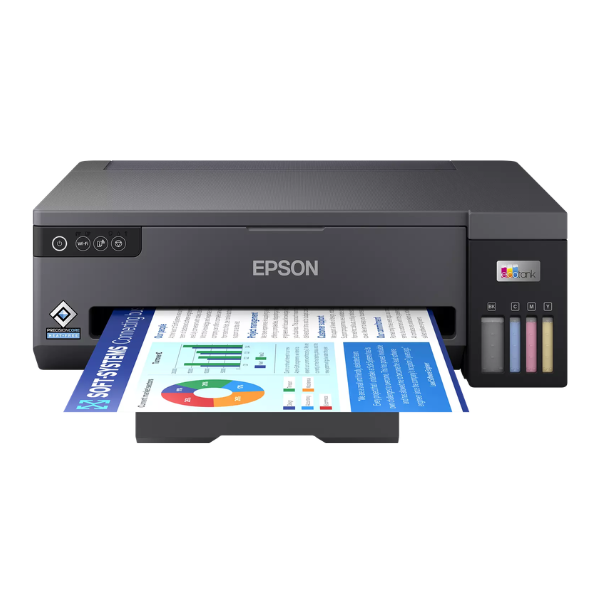
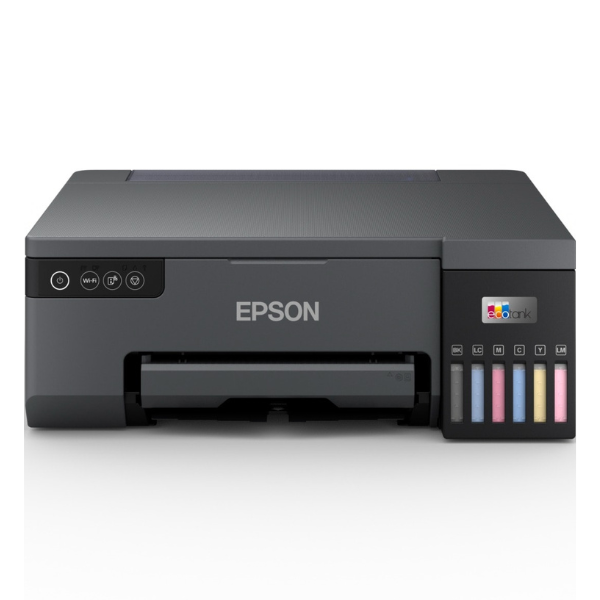
Unlock your creativity and print stunning, professional-quality photos right from your home or office in Uganda with the brand new Epson EcoTank L8050 Photo Printer. Designed for photographers, graphic designers, and small businesses, this printer delivers vibrant, true-to-life colours and sharp details, all at an unbelievably low cost. Say goodbye to expensive cartridges forever!
The L8050's revolutionary EcoTank system uses high-capacity, refillable ink tanks and affordable ink bottles, saving you up to 90% on printing costs. Its 6-colour Claria ET Premium ink set produces beautiful, long-lasting photos and flawless A4 borderless prints. Functionality is key, and this printer offers seamless wireless printing from your laptop, tablet, or smartphone using Wi-Fi and the Epson Smart Panel app. It even has a special tray for printing directly onto printable CDs, DVDs, and PVC ID cards, perfect for personalizing your media or creating professional identification.
This is a BRAND NEW, factory-sealed unit, ready to transform your printing experience. Whether you're running a photo studio in Kampala, printing marketing materials for your business, or simply preserving precious family memories, the Epson L8050 provides the quality, versatility, and economy you need to get the job done right. It's a reliable workhorse built for high-volume photo printing without compromising on quality.
📖 HOW TO USE
1. Carefully unbox the printer and remove all protective tapes and materials.
2. Fill each ink tank with the corresponding colour ink bottle. The bottles are keyed to prevent mistakes.
3. Plug in the power cord, turn on the printer, and wait for it to initialize.
4. Follow the on-screen prompts on your computer or the Epson Smart Panel app to complete the initial ink charging process.
5. Connect the printer to your Wi-Fi network or directly to your computer via USB cable and install the necessary drivers.
💡 TIPS & CARE
• For the best results and printer longevity, always use genuine Epson 108 series ink bottles.
• Use high-quality glossy or matte photo paper to achieve vibrant, professional-grade prints.
• To maintain optimal print quality, perform a nozzle check from the printer's maintenance menu if you notice any gaps or lines in your prints.
• Keep your photo paper stored flat in a cool, dry place to prevent it from curling or absorbing moisture.