Product Description
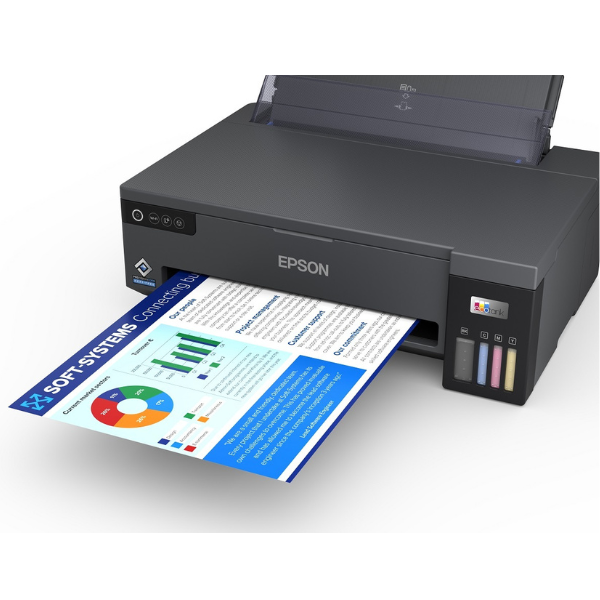
Take your printing to the next level with the BRAND NEW Epson EcoTank L11050 A3+ Printer. Designed for businesses, designers, and students in Uganda who need high-quality, large-format printing without the high cost. Say goodbye to expensive cartridges! The integrated high-capacity ink tank system delivers an incredible page yield, making it perfect for printing everything from architectural plans and marketing posters to large spreadsheets and stunning photos, all at a very low cost per page.
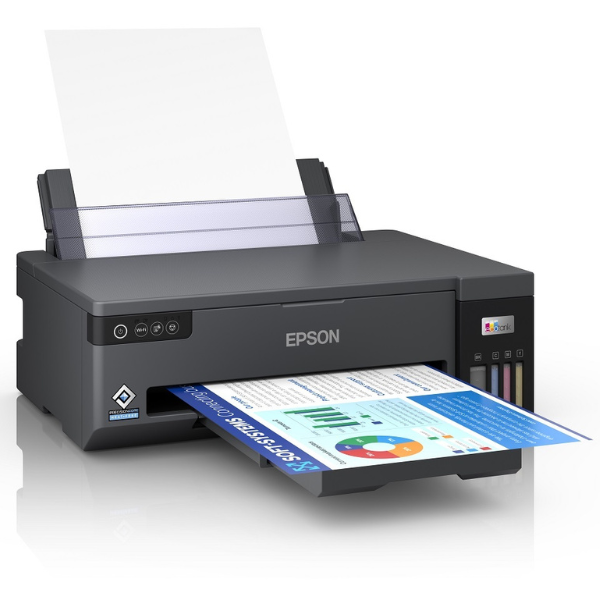
This printer is built for performance and convenience. Featuring Epson's advanced PrecisionCore printhead technology, it produces sharp text and vibrant, professional-grade colour prints with a resolution of up to 4800 x 1200 dpi. With built-in Wi-Fi and Wi-Fi Direct, you can easily print from your computer, laptop, or smartphone without the hassle of cables. Its compact design for an A3+ printer also helps save valuable desk space in your home or office.
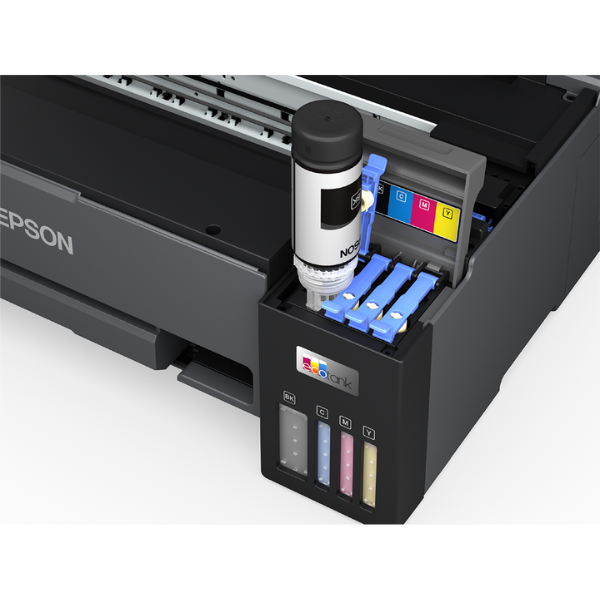
Stop limiting your ideas to A4. The Epson EcoTank L11050 opens up a world of possibilities for your projects. It's simple to set up and the spill-free, error-free ink refilling system makes it easy to maintain. This is a brand new, sealed unit, ready to deliver reliable and cost-effective printing from the moment you unbox it.
- Ultra-Low-Cost Printing: Print thousands of pages with the included ink, saving you money from day one.
- A3+ Borderless Photos: Create professional, edge-to-edge photos and documents.
- Wireless Freedom: Print from anywhere in your office or home with Wi-Fi connectivity.
- Superb Quality: PrecisionCore technology ensures every print is sharp, clear, and vibrant.
📖 HOW TO USE
1. Carefully unbox the printer and remove all protective tapes and materials.
2. Fill the ink tanks using the corresponding colour-coded, spill-free Epson ink bottles.
3. Plug in the power cord, turn on the printer, and wait for it to initialize.
4. Follow the on-screen instructions or use the Epson Smart Panel app to connect the printer to your Wi-Fi network.
5. Load paper into the rear tray and install the printer drivers on your computer to start printing.
💡 TIPS & CARE
• Always use genuine Epson ink bottles to ensure the best print quality and longevity of your printer.
• For stunning photo prints, use high-quality Epson photo paper.
• To prevent print head nozzles from drying out, try to print at least one page in colour every week.
• Keep the printer drivers and software updated to access the latest features and performance improvements.